Note
These instructions apply only to iOS devices.
With ForwardSMS now available on iOS, you can set up automatic forwarding for your text messages. This post explains how to set up Shortcuts Automation to get started.
Pre-requisites
Make sure you have the ForwardSMS app installed on your iOS device. If not, please download first.
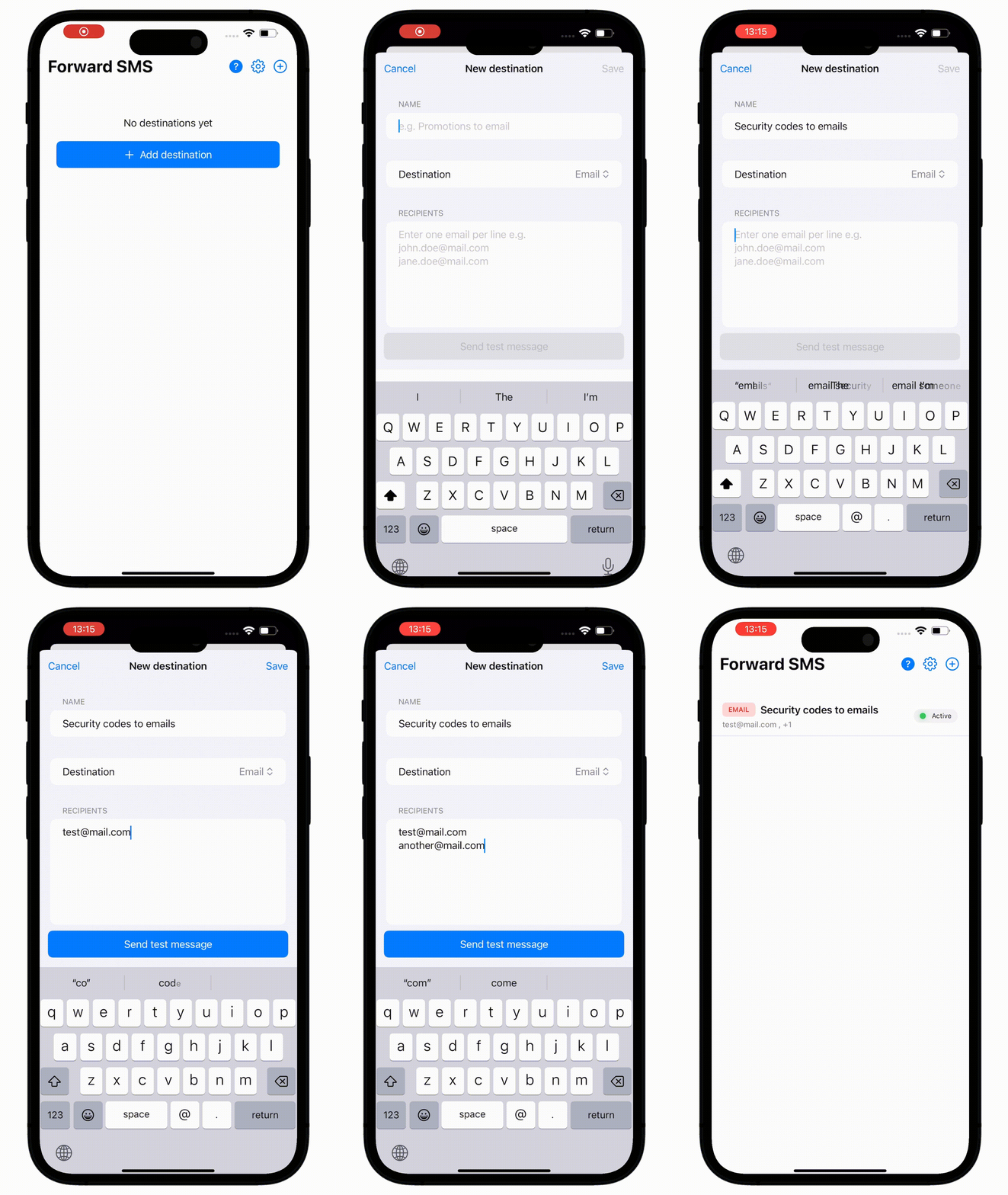
Setting Up Message Automation
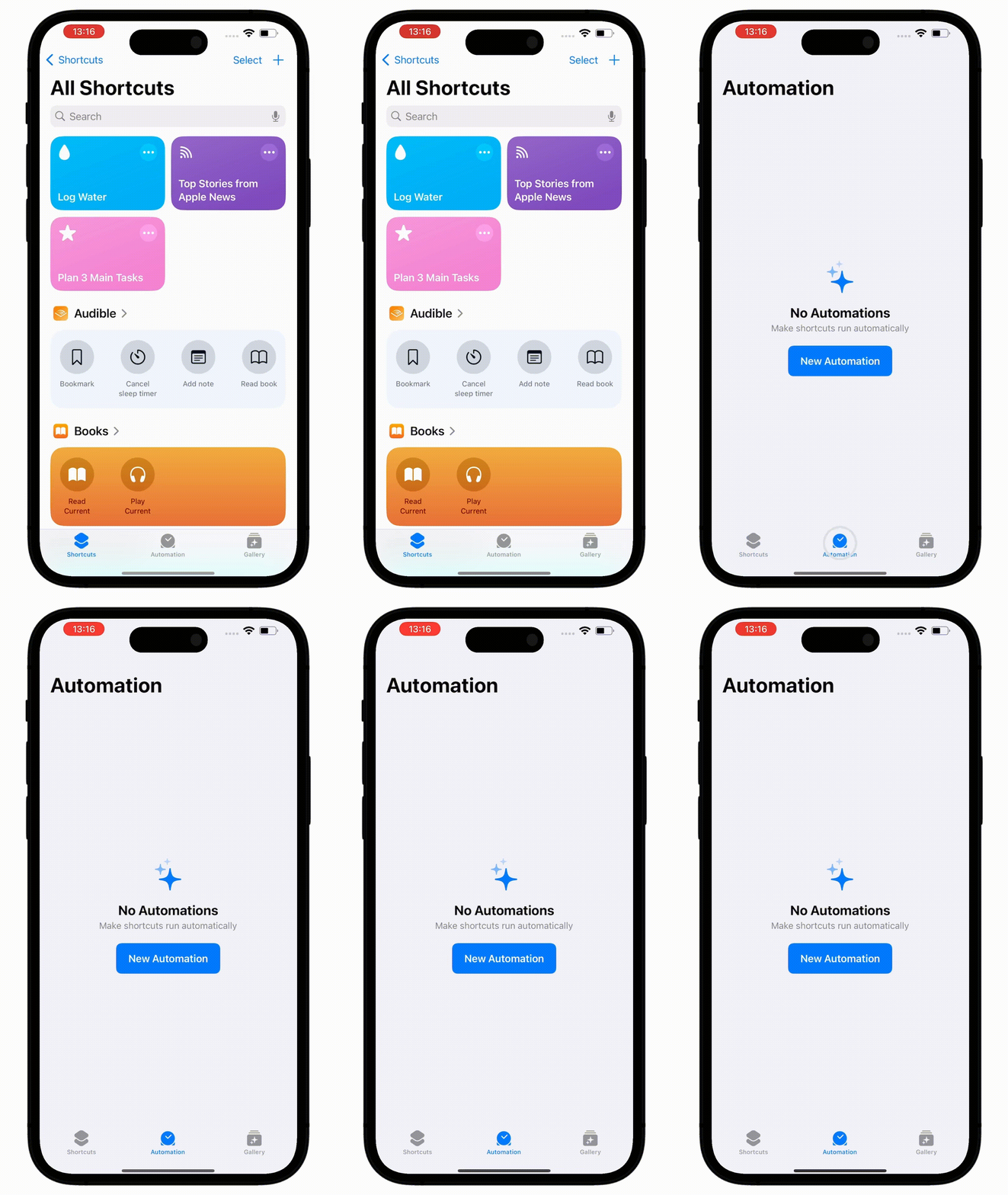
Step 1: Launch Shortcuts
- Open the Shortcuts app
- Navigate to the Automations tab
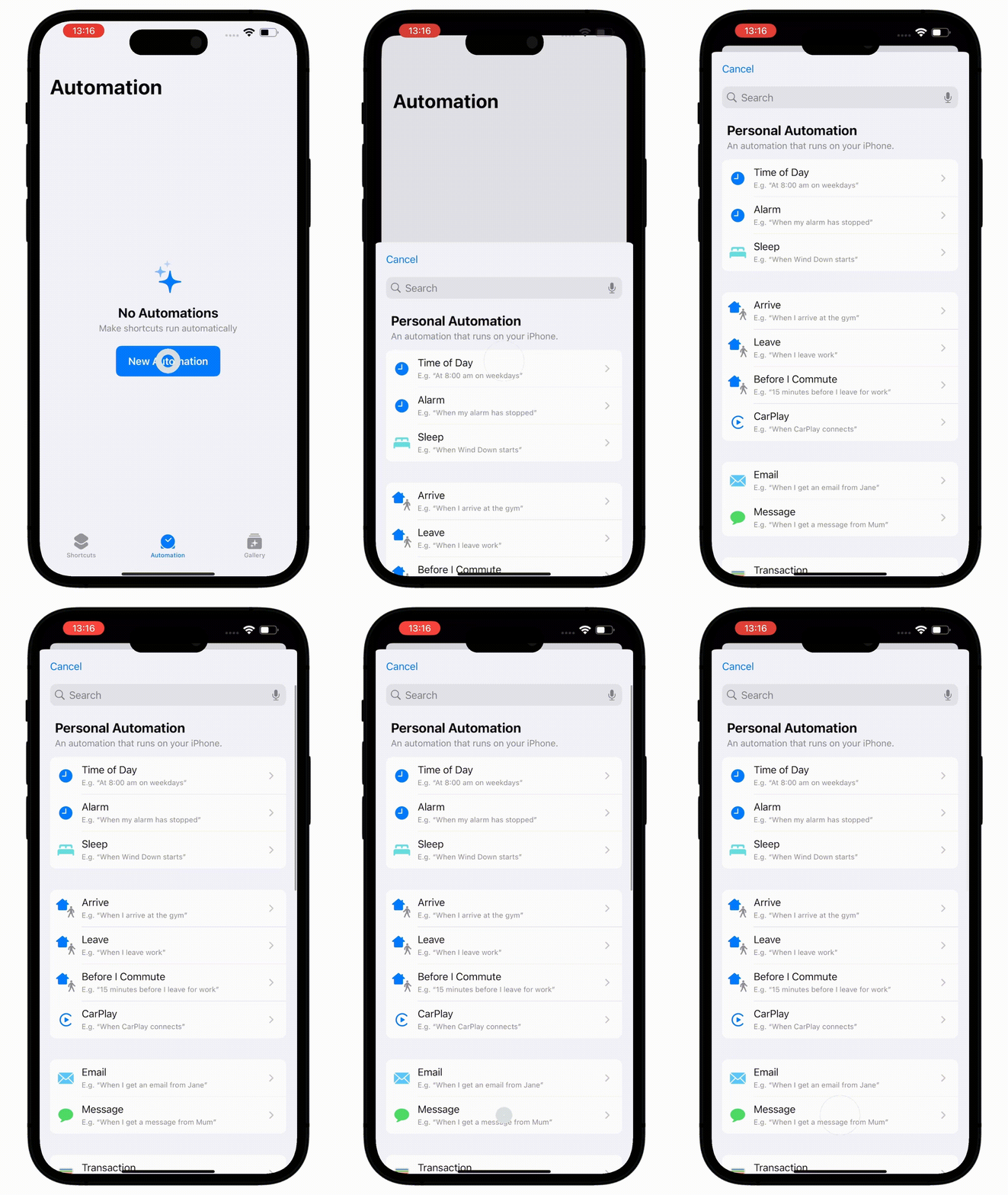
Step 2: Create New Automation
- Tap on New Automation
- Select Message from the list
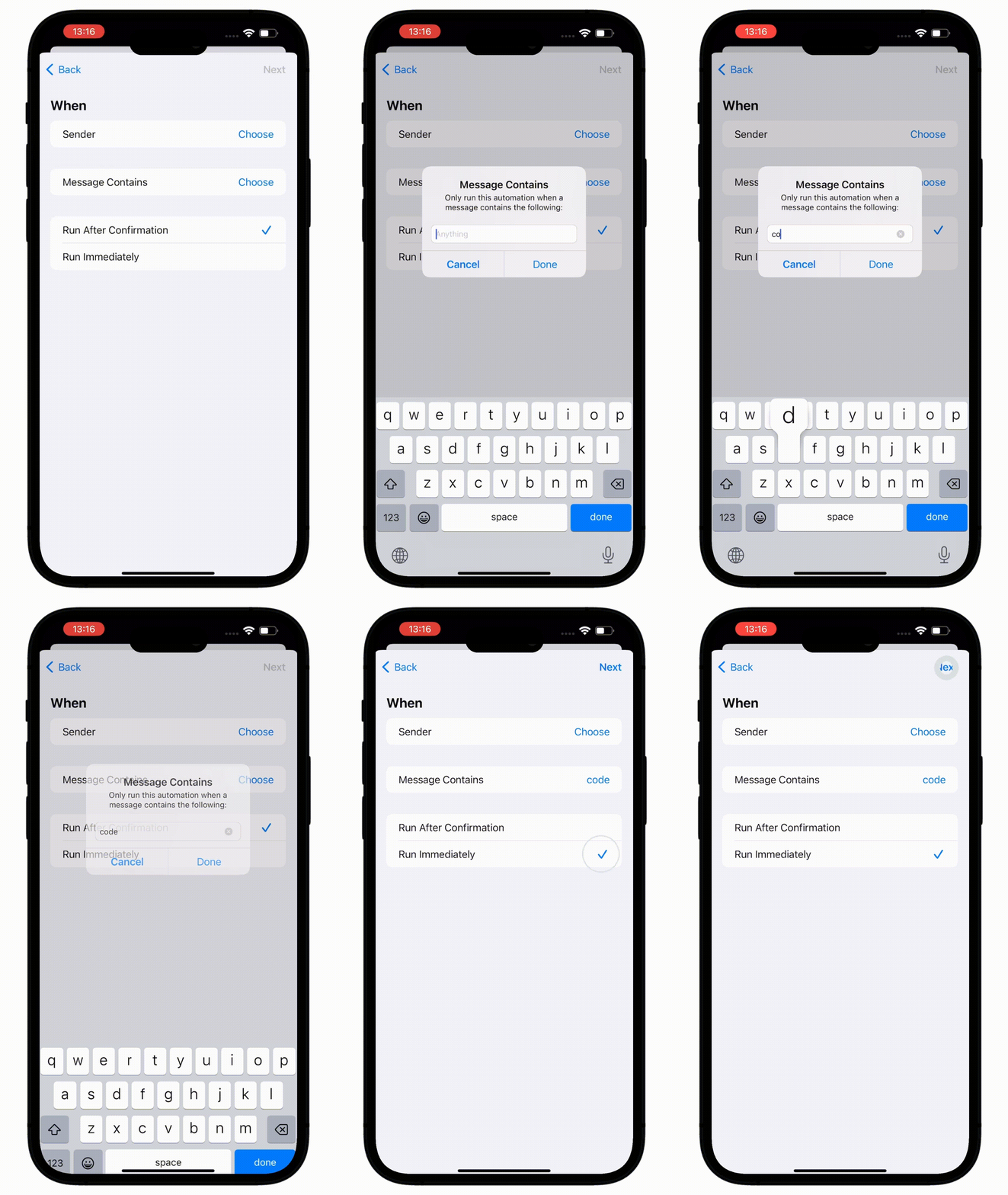
Step 3: Configure Trigger
- Choose Sender or Message Contains as the trigger
- Select Run Immediately
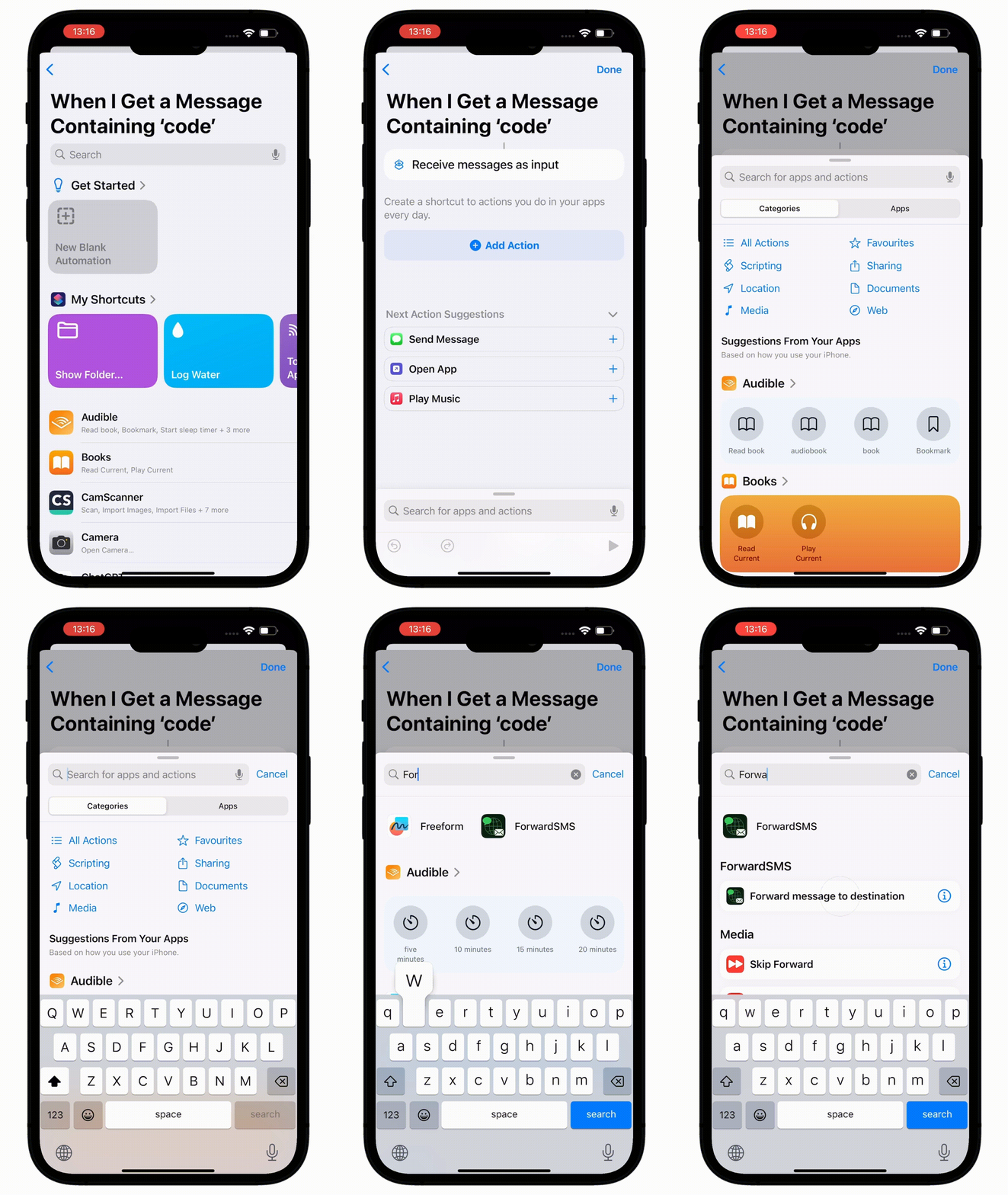
Step 4: Set Up Action
- Choose New Blank Automation
- Search for ForwardSMS App
- Select Forward message to destination
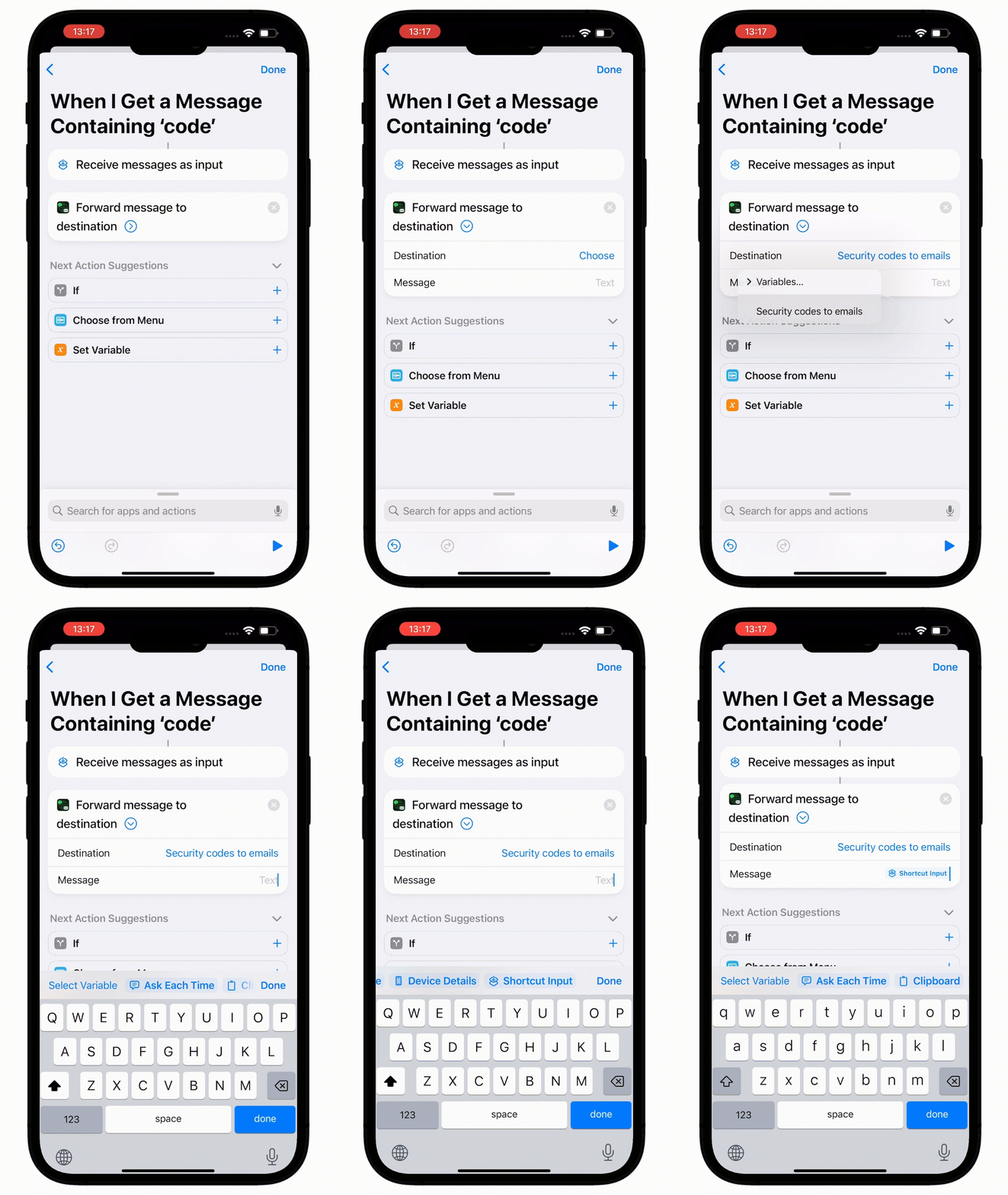
Step 5: Configure Message Settings
- Expand Forward message to destination
- Select Destination
- Set Message to Shortcut Input
Step 6: Finalize Setup
- Tap Done
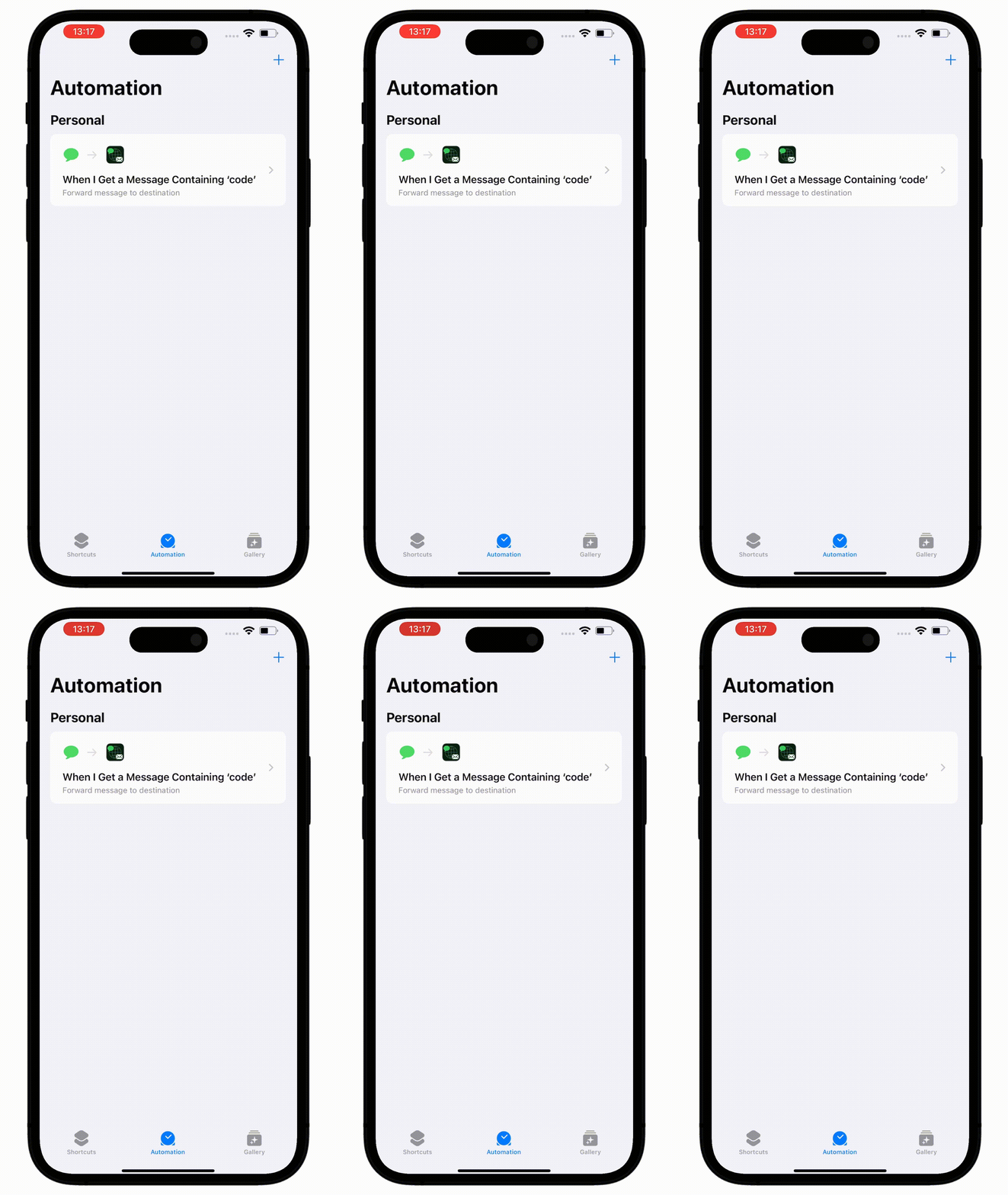
Congratulations! You are now all set up! 🎉
Notes
- Make sure you have the Shortcuts app installed on your device
- The ForwardSMS app should be installed before setting up this automation
- The automation will run automatically when the trigger conditions are met
Conclusion
With ForwardSMS on iOS, forwarding text messages to email is simple. Explore our blog for additional ways to enhance your experience with ForwardSMS.
Automated text message forwarding takes only minutes.
Explore our blog for additional ways to enhance your experience with ForwardSMS.